Your AI Note Taker,
Right Inside Chrome
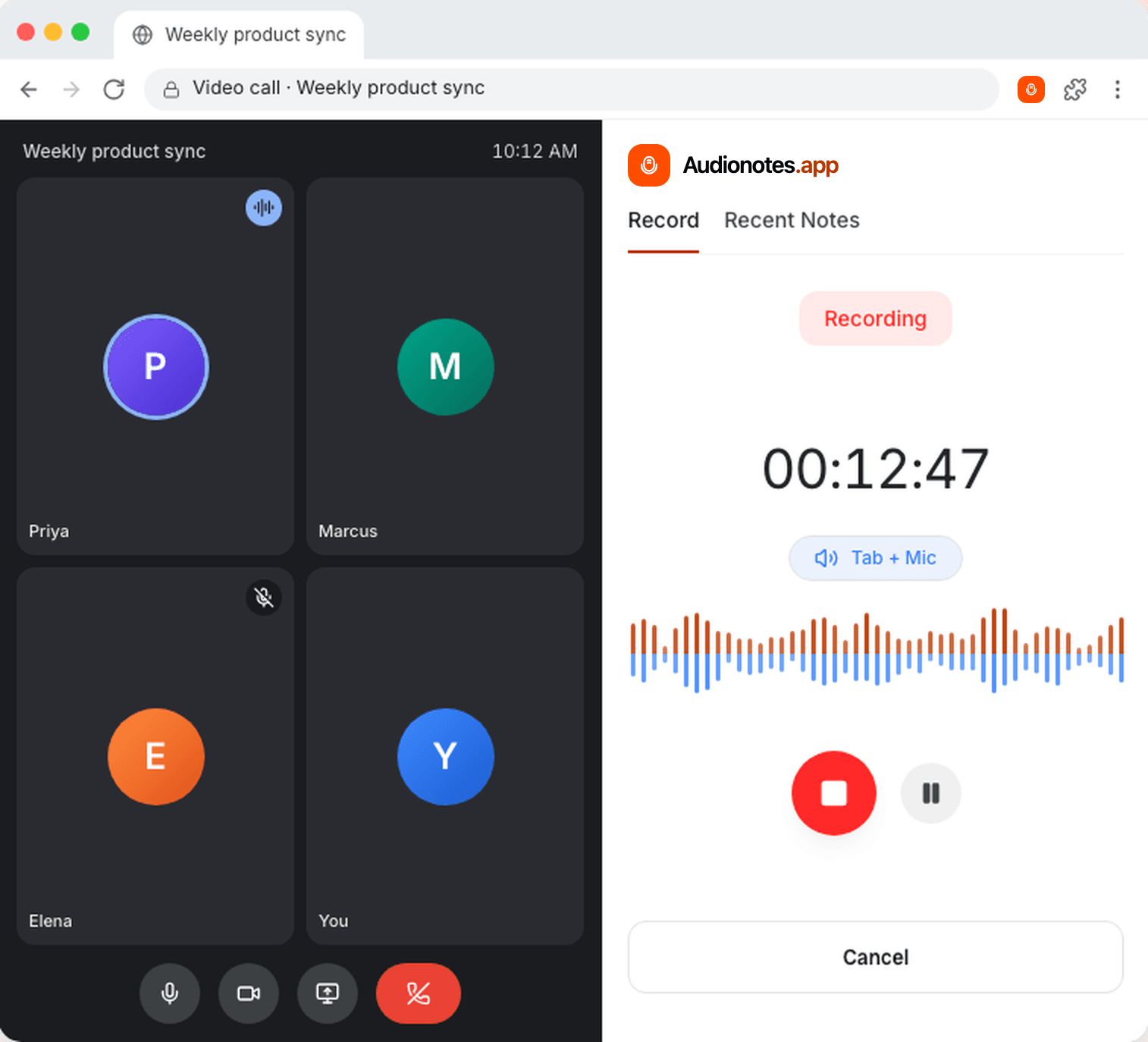
Record your mic or a Google Meet tab from Chrome's side panel. Audionotes turns it into a transcript, a summary and action items in 99+ languages, with no bot joining your call.
Free to start. Requires Google Chrome 116 or later on desktop.
How it works
- Step 1
Add Audionotes to Chrome
Install the extension from the Chrome Web Store, pin it to your toolbar and sign in with your Audionotes account.
- Step 2
Pick a source and record
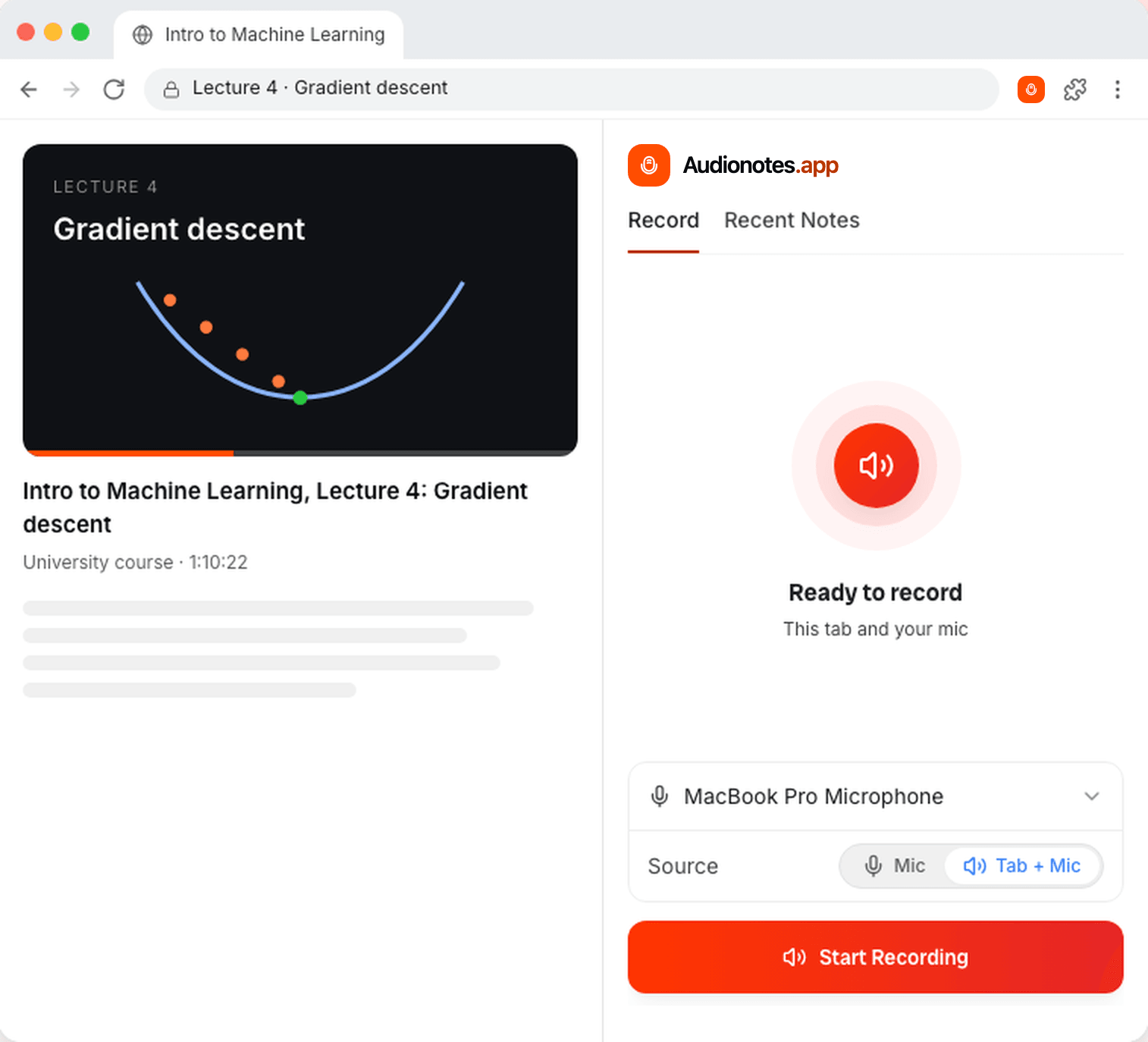
Open the side panel and choose Mic for voice notes, or Tab + Mic to capture a call, webinar or lecture playing in a tab.
- Step 3
Get structured notes
Stop the recording and Audionotes uploads it to your account, then returns a transcript, summary and action items.
Record your voice or the whole conversation
Mic captures voice notes and ideas. Tab + Mic records the audio of the tab you choose together with your microphone, so both sides of a Google Meet call, webinar or online lecture end up in one note. You keep hearing the tab while it records.
Your recent notes, one click away
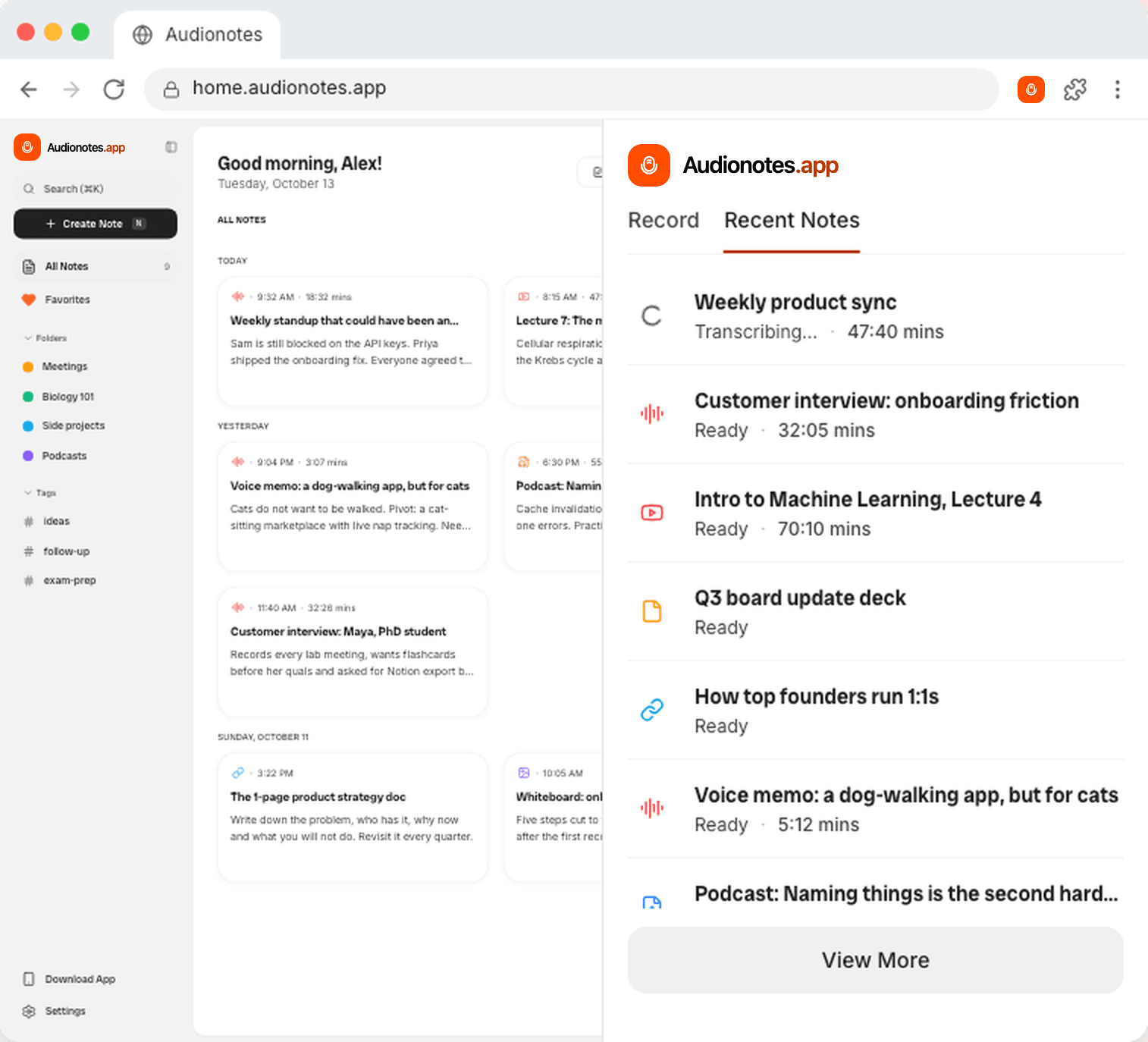
The Recent Notes tab lists what you just recorded while it processes. Open any note on the Audionotes web app to read the summary, chat with it or export it. Every note also syncs to your phone and Mac.
Built for real meetings and lectures
Tab + Mic capture
Record any call or video playing in a Chrome tab along with your own voice. No bot joins the meeting.
Quick voice notes
Capture an idea, a to-do list or a brain dump with your mic while you keep browsing.
Keeps recording in the background
Close the side panel or switch tabs and the recording keeps going until you stop it.
Crash recovery
Audio is saved on your device in small chunks as you record. If Chrome closes unexpectedly, you can upload, download or discard the recording when you come back.
Recent notes
See processing status and open your latest notes straight from the side panel.
Keyboard shortcut
Open Audionotes with Ctrl+Shift+9, or Cmd+Shift+9 on Mac.
Private by design
The extension records only after you press Start Recording, captures only the tab you choose, and does not read your pages or browsing history. Recordings go straight to your Audionotes account. Read our privacy policy
Frequently Asked Questions


Save time and stay organised with Audionotes
Without Audionotes


With Audionotes


Get the Audionotes app today
For mobile
Scan the QR code below

Still not sure thatAudionotes.app isright for you?
Let ChatGPT, Claude, or Perplexity help you to choose.
Click a button and see what your favourite AI says about Audionotes.app.


