A Beginner’s Guide to Recording and Transcribing Meeting Minutes
Beginner’s guide to recording and transcribing meeting minutes accurately. Learn setup tips, transcription steps, common mistakes, and how to use Audionotes.
Meetings are where ideas are discussed, decisions are made, and plans move forward. But if those discussions are not properly recorded, important details can easily get lost. That is where meeting minutes come in. If you are new to recording and transcribing meeting minutes, it might feel confusing at first. What should you write down? How detailed should you be? And how do you turn spoken conversations into clear written notes? This beginner’s guide will help you understand the basics so you can record meetings accurately and confidently.
How to Record Meeting Minutes Accurately
Accurate meeting minutes start with the right approach. Here is how you can record it accurately:
-
Test the Recording Setup Before the Meeting
Before the meeting begins, always test your recording setup. Check if the microphone is working, the volume levels are clear, and the recording software is functioning properly. Do a short trial recording and play it back to confirm the sound quality. This small step can save you from losing important discussions due to technical errors. It also helps you feel confident that everything is ready once the meeting starts.
-
Minimize Background Noise
Background noise can make recordings difficult to understand and time-consuming to review. Choose a quiet room and close doors or windows to reduce outside sounds. Ask participants to mute themselves when they are not speaking, especially in virtual meetings. Even simple distractions like keyboard typing or paper shuffling can affect clarity. A clean audio environment makes it much easier to create accurate and professional meeting minutes.
-
Avoid Filler Words
While recording, encourage speakers to stay clear and direct. Filler words like “um,” “uh,” and “like” can make transcripts messy and harder to summarise. Although it is natural for people to use them in conversation, being mindful of speech improves clarity. When reviewing recordings, focus on the main points rather than unnecessary words. Clear communication leads to cleaner and more accurate minutes.
-
One Speaker at a Time
Overlapping conversations make it difficult to understand who said what. Set a simple rule at the start of the meeting that only one person should speak at a time. This is especially important during brainstorming or heated discussions. If needed, the meeting host can guide the flow of conversation. Clear speaker turns help you accurately attribute comments and avoid confusion in the final minutes.
-
Use Quality Equipment
Good equipment improves audio clarity significantly. Use a reliable microphone rather than depending only on a laptop’s built-in mic. In larger rooms, consider using a central recording device that captures voices from all directions. Clear sound reduces the effort required during review and transcription. Investing in quality tools ensures that important details are not lost.
-
Use Reliable Recording Software
Choose recording software that is stable and easy to use. It should allow you to record without interruptions and save files securely. Some tools also offer automatic transcription features, which can speed up the minute-writing process. Make sure the software is updated and compatible with your device before the meeting. Reliable software reduces the risk of corrupted or incomplete recordings.
-
Save and Label Recordings Properly
After the meeting ends, immediately save the recording with a clear and consistent naming format. Include the meeting name, date, and version if necessary. Store files in an organized folder structure so they are easy to retrieve later. Proper labeling prevents confusion and ensures you can quickly refer back to discussions when drafting or reviewing meeting minutes.
How To Transcribe Meeting Minutes
Transcribing meeting minutes does not have to be complicated. If you follow a clear process and use the right tools, you can turn any meeting into structured, shareable notes without wasting hours. Here is how you can do it properly.
-
Select a Reliable Transcription Tool
The first step is choosing a transcription tool you can trust. A good tool should accurately convert speech to text, identify speakers, organise content clearly, and allow easy editing.
This is where AudioNotes makes the process simple. Instead of manually typing everything, you can upload your meeting recording and let AudioNotes convert it into structured notes within minutes. It not only transcribes audio but also summarises conversations, highlights action points, and lets you chat with your notes to extract specific details.
If you regularly attend meetings, this saves hours every week and reduces the risk of missing important decisions.
Let Audionotes turn your conversations into organised meeting minutes automatically. Start recording and transcribing meeting minutes with Audionotes.
-
Get Ready for Recording
Before the meeting starts, make sure everything is set up properly. Check your microphone quality, reduce background noise, and confirm that all participants know the meeting is being recorded. If it is a virtual meeting, test your platform settings in advance.
A clean audio recording leads to a more accurate transcript. Taking a few minutes to prepare can prevent hours of correction later.
-
Record and Save Your Meeting Audio
Once the meeting begins, start recording immediately so nothing is missed. Make sure all speakers are clearly audible.
After the meeting ends, save the file in a common format such as MP3 or WAV. Give it a clear name that includes the meeting date and topic. This makes it easier to organise and retrieve later.
Proper file management keeps your documentation clean and professional.
-
Upload Your Recording to the Transcription Tool
Next, upload your saved audio file to your chosen transcription platform. With AudioNotes, this is a simple drag-and-drop process.
Once uploaded, the system processes the recording and converts it into text. You do not need technical knowledge to handle this step. The platform does the heavy lifting for you.
-
Set Your Transcription Preferences
Before generating the final transcript, adjust your preferences. You may want speaker labels, timestamps, or automatic summaries.
If you are preparing formal meeting minutes, you can also choose structured formatting. This helps separate discussion points, decisions, and action items clearly.
Customising these settings ensures that your transcript matches your documentation style.
-
Review and Refine Your Transcript
Even the best transcription tools benefit from a quick human review. Go through the generated transcript and check for minor errors, especially names, technical terms, or company-specific language.
You can clean up filler words, shorten long sentences, and format the document into clear meeting minutes.
This step ensures your final document is polished and professional.
-
Download and Share the Final Meeting Minutes
Once you are satisfied, download the final version in your preferred format. You can export it as a document, copy it into your company template, or share it directly with your team.
Send the meeting minutes within 24 hours while the discussion is still fresh. This improves accountability and ensures action points are not forgotten.
Step-by-Step Guide to Recording and Transcribing Meeting Minutes with Audionotes
Here’s how you can use Audionotes to record and transcribe meeting minutes:
Step 1: Log in and Start Recording
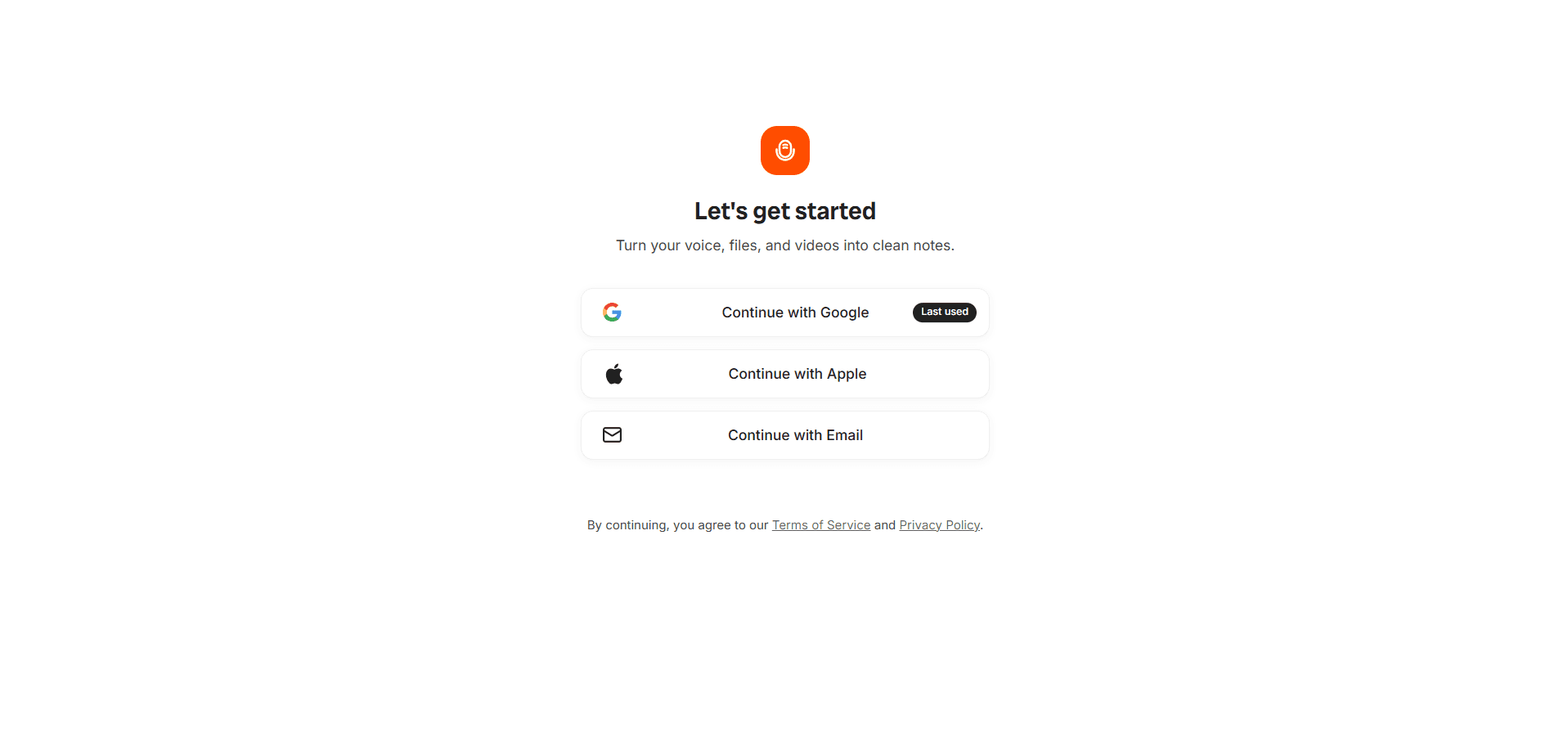
First, log in to your Audionotes account. Once you are on the dashboard, click the Start Recording button.
You can record the entire meeting directly inside the platform. There is no need for separate voice recorders or external apps. Just make sure your microphone is working properly before you begin. Once you click start, Audionotes will begin capturing everything discussed in the meeting.
Step 2: Stop Recording After the Meeting Ends

When the meeting is complete, click the Stop Recording button. Audionotes will immediately begin processing the audio file.
The processing happens automatically. You do not need to upload or convert the file manually. Depending on the length of the meeting, this may take a few minutes. During this time, the system analyses the recording and prepares the transcript.
Step 3: Review the Transcription and Structured Notes

Once processing is finished, you will receive a full transcription of the meeting. You will typically see:
-
A complete word-for-word transcript
-
Speaker identification for better clarity
-
A structured breakdown of discussion points
-
A short summary highlighting the main decisions and action items
This makes it easier to scan through long meetings and quickly find important information. You can also edit the text if you want to refine wording or correct names.
Step 4: Share with Your Team
After reviewing the notes, click the Share button.
You can send the transcription and meeting summary directly to your colleagues. This ensures everyone stays aligned, even those who could not attend the meeting. It also reduces misunderstandings since the information is documented clearly.
Get automatic meeting notes, action items, and summaries with Audionotes and share them with your team instantly. Start recording and transcribing meeting minutes with Audionotes.
Common Mistakes to Avoid in Meeting Minute Transcription and Recording
Recording and transcribing meetings sounds simple, but small slips can create confusion later. Here are the usual mistakes people make, and how you can avoid them.
-
Poor Audio Quality
As mentioned earlier, this is where most problems begin.
If the recording is full of background noise, echoes, or people sitting too far from the mic, your transcript will suffer. Even advanced tools cannot guess what was never clearly recorded.
Before the meeting starts, just do a quick check. Is the mic working properly? Are people speaking clearly? Is there unnecessary noise in the room? Two minutes of setup can save you hours of editing later.
-
Overlapping Speech
When three people talk at once, no one really wins. Not the recording. Not the transcript. Not the person trying to read it later.
Meetings move fast, and interruptions happen. But overlapping speech creates messy transcripts and missed points. Encourage people to pause before responding. It keeps the conversation cleaner and the notes more accurate.
-
Selecting the Wrong Transcription Tool
All transcription tools look impressive on their landing pages. That does not mean they fit your needs.
Some tools struggle with multiple speakers. Some do not handle accents well. Some do not clearly separate dialogue. If you pick the wrong one, you will spend more time fixing errors than you would have spent typing manually.
Test it first. Upload a short sample recording. See how it performs before using it for important meetings.
-
Ignoring Action Items and Decisions
This one happens more often than you think.
People focus on recording every sentence, but forget to clearly mark what was actually decided. A transcript without clear action points is just a long conversation.
After the meeting, scan the notes and highlight decisions. Mention who is responsible for what. Add deadlines if they were discussed. That is what most people look for when they open meeting minutes.
-
Skipping Proofreading or Editing
Automated transcripts are never perfect. Ever.
Names get misspelled. Technical terms get butchered. Sentences break in weird places. If you forward that directly to your team, it looks careless.
You do not need to rewrite everything. Just read through once. Clean obvious mistakes. Make it readable.
-
Not Saving or Backing Up Files
Nothing feels worse than realizing a recording was not saved properly.
Or that it was saved on one device that crashed.
Always store recordings and transcripts in at least one backup location. Cloud storage helps. Shared drives help. Even a simple habit of double checking the file right after the meeting helps.
Do not assume it saved. Confirm it.
-
Overlooking Formatting and Structure
A long block of text is difficult to read and even harder to follow. Meeting minutes should be structured properly with headings such as Date, Attendees, Agenda, Key Discussions, Decisions, and Action Items.
Clear formatting makes it easier for anyone to review the document later and find relevant information quickly.
Closing Thoughts
Recording and transcribing meeting minutes does not have to be complicated. If you focus on clear audio, organised notes, and quick review, the process becomes manageable. Over time, you will find your own rhythm. Stay consistent, keep it practical, and your notes will always serve their purpose.
Frequently Asked Questions (FAQs)
-
How do I transcribe meeting minutes for free?
You can use the free plan on Audionotes to record and transcribe your meetings. Simply upload your audio file or record directly in the platform, and it will convert your discussion into text without any upfront cost.
-
How do you transcribe meeting minutes effectively?
Start with clear audio. Use a reliable transcription tool, review the generated text for small errors, and organise it into sections like decisions and action items. Keep it clean and structured.
-
How do you translate meeting minutes?
After transcribing the meeting, use a translation feature within your tool or a trusted translation platform. Always review the translated version to make sure names, technical terms, and context are accurate.
![Journaling for ADHD: Benefits & How to Start [2025]](/blog/covers/journaling-for-adhd.png)
![How to Prepare a Meeting Agenda [Template + Tips]](/blog/covers/how-to-prepare-agenda-for-meeting.png)