
How to Record & Send a Voice Memo on iPhone
Learn how to record and send voice memos on iPhone. Quick guide with tips for sharing via text, email & apps. Transcribe with Audionotes.
Recording a voice memo on your iPhone is one of the easiest ways to capture thoughts, reminders, or even important conversations without having to type everything out. Whether you’re a student taking lecture notes, a professional logging quick ideas, or just someone trying to remember a grocery list, voice memos can come in handy. The best part is that you can later convert these recordings into clear, organised notes using apps like Audionotes that turn audio into text with just a few taps. In this blog, we’ll walk you through how to record and send a voice memo on your iPhone, step by step. Without waiting further, let’s get started.
How to Record and Send Voice Memos on iPhone
Here’s how to record and send voice memos on your iPhone:
-
Open the Voice Memos App
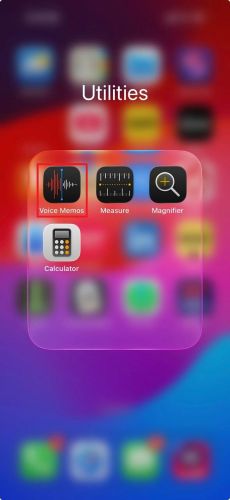
Find the Voice Memos app on your iPhone. It looks like a black icon with a red and white waveform. You’ll usually find it inside the “Utilities” folder, but you can also swipe down on your Home Screen and type “Voice Memos” in the search bar.
-
Start a New Recording
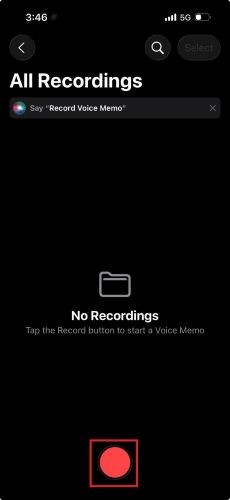
Tap the big red circle to begin recording. Once you do, the screen will change, and you’ll see a live waveform moving as your iPhone picks up sound. This means it’s recording.
-
Speak Clearly
Hold your phone close to your mouth while speaking, or use your AirPods for better audio quality. Try to record in a quiet space so your voice is clear and easy to hear.
-
Pause and Resume (If Needed)
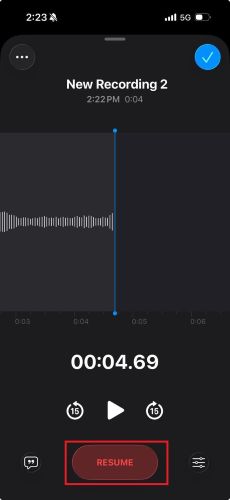
If you need a break while recording, tap the pause icon. When you’re ready to continue, tap Resume to keep recording from where you left off.
-
Stop the Recording
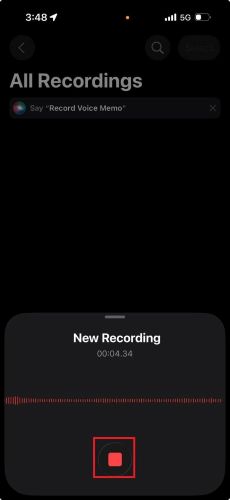
When you’re done, tap the red square Stop button. The recording will end and automatically save with a default name like “New Recording.”
-
Rename the Recording (Optional)
To stay organised, you can rename your voice memo. Tap on the new recording, then tap the default name (usually based on your location or time). Type in a title that helps you remember what the memo is about.
-
Share the Voice Memo
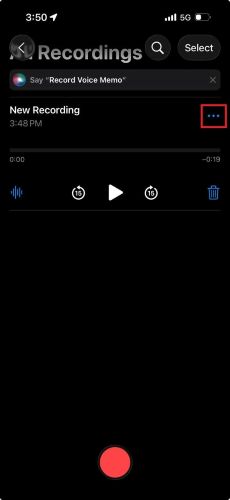
To send your recording, tap the three dots (…) next to your saved memo, then tap Share. You can send it through Messages, WhatsApp, AirDrop, Email, or any other sharing app on your phone.
How to Transcribe Voice Memos to Text Using Audionotes
If you have a voice memo saved on your phone and want a quick written version of it, the Audionotes app can help you do that in just a few steps. Here’s exactly how to go about it.
Step 1: Open the Audionotes App
Start by launching the Audionotes app. Make sure you’re logged in with your account before you begin. If you don’t have an account yet, it just takes a minute to create one.
Step 2: Save the Voice Memo
Next, head over to your default voice memo or recording app. Find the memo you want to transcribe, and save or export it to your phone’s storage. You might need to rename it so it’s easy to find later.
Step 3: Upload the Saved Memo

Go back to the Audionotes app and look for the upload option. Select the saved voice memo from your device and upload it into the app. It usually accepts most standard audio formats without any trouble.
Step 4: Press Submit

Once you’ve selected the file, press the Submit button. Wait a few moments while the upload and transcription process is completed. This usually only takes a short time depending on the file size.
Step 5: Copy the Transcript

After the app generates the transcript, you’ll see an option that says “Copy Transcript.” Tap it to save the text version to your clipboard. From there, you can paste it into a notes app, document, or wherever you need it.
When to Use Voice Memos
Here’s when using voice memos just makes sense:
-
Jotting Down Ideas
Voice memos are perfect when an idea strikes and you don’t have time to write it down. Whether you’re walking, commuting, or just away from your desk, you can quickly record your thoughts before they slip away. It’s faster than typing and keeps your flow natural. Later, you can go back, listen, and expand those rough ideas into something more polished. Many creative people use voice memos for brainstorming because it’s like talking to yourself without overthinking.
-
Project Management
Managing a project often means juggling updates, reminders, and quick decisions. Voice memos make this easier. You can record task instructions, updates, or progress notes on the go and share them with your team. It helps you communicate clearly without needing to sit down and type every detail. It also creates a record you can come back to while tracking your work.
-
Transcription and Summarization
If you need to review meetings, interviews, or class notes, recording voice memos can save time. Once recorded, you can use transcription tools to convert your spoken words into text. This makes it easier to summarise content, pull out quotes, or keep a written copy for later. It’s a smart way to cut down on manual note-taking while still staying organised.
-
Note Taking
Sometimes typing notes doesn’t feel natural, especially in a rush or when multitasking. Voice memos give you a hands-free way to take notes while you’re on the move. Whether it’s a lecture, a client call, or even a personal reminder, you can record everything and come back to it later. It’s also helpful if you process information better by speaking out loud rather than writing it down.
Closing Thoughts
Voice memos on iPhone are a simple yet powerful way to capture thoughts, tasks, and conversations without slowing yourself down. Once you get used to recording and sharing them, they become part of your daily flow. And with tools like Audionotes turning audio into text, managing ideas and notes becomes even easier and more organised.
Frequently Asked Questions (FAQs)
-
How long can we record a voice memo for?
There’s no fixed time limit for how long you can record a voice memo on your iPhone. You can keep recording as long as your phone has enough storage. Since voice memos usually take up less than 1 MB per minute, you can easily record for hours if your storage space allows.
-
What’s the maximum length of a voice memo you can send?
While the Voice Memos app can record long files, the limit comes from the app you’re using to send it.
Here’s how different apps handle it:
-
iMessage: You can send up to 2 minutes of audio. If the person taps “Keep,” it won’t expire.
-
WhatsApp: Allows voice messages up to around 15 minutes.
-
Instagram: Caps audio messages at 1 minute.
So, your recording might be long, but you’ll need to trim or edit it depending on where you’re sending it.
-
-
Can you edit voice memos?
Yes, the Voice Memos app gives you built-in tools to clean up or adjust your recordings. You can:
-
Trim the start or end
-
Remove parts from the middle
-
Overwrite a section
-
Change the playback speed
-
Enhance the sound by cutting down background noise
-
Skip over silent pauses automatically
These features make it easy to polish your memo before you save or share it.
-
![How to Record & Transcribe Meeting Minutes [2025]](/blog/covers/how-to-improve-note-taking-skills.webp)
![Best AI Tools to Summarize YouTube Videos [2026]](/blog/covers/ai-tool-to-summarize-youtube-video.png)
![Journaling for ADHD: Benefits & How to Start [2025]](/blog/covers/journaling-for-adhd.png)